Why Is My TP-Link Deco Ethernet Port Not Working?
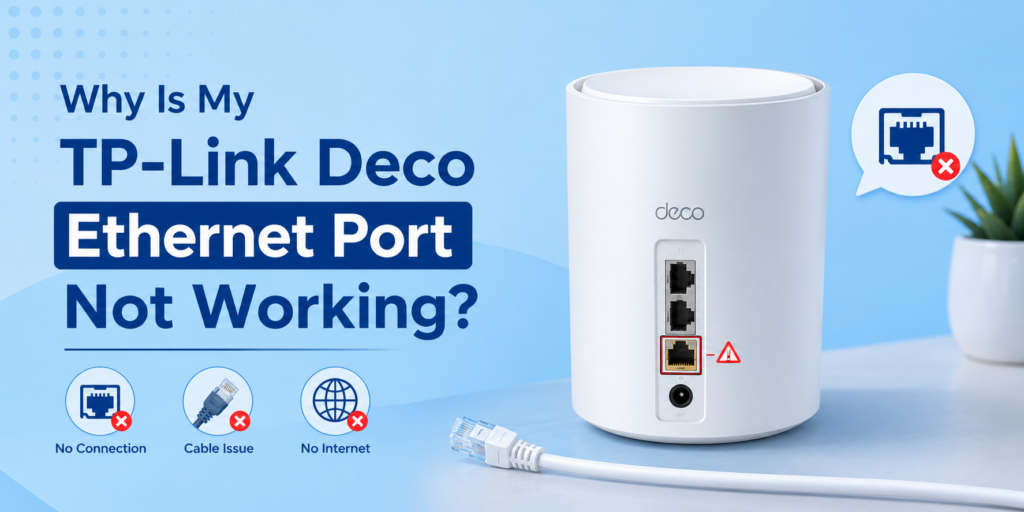
If your TP-Link Deco Ethernet port is not working, the problem is usually caused by a faulty Ethernet cable, incorrect port usage, IPTV settings, outdated firmware or a hardware failure. Start by checking the cable, restarting the Deco, updating the firmware and testing each Ethernet port before considering a replacement.
A TP-Link Deco system is designed to provide fast and stable WiFi throughout your home. One of its biggest advantages is the Ethernet ports, which allow you to connect gaming consoles, desktop PCs, smart TVs, switches or even create a Deco Ethernet backhaul for faster mesh performance.
However, many users ultimately face one frustrating issue—the TP-Link Deco Ethernet port not working.
Sometimes the Ethernet cable is plugged in, but there is no internet. In other cases, one Deco unit works while another satellite does not detect the cable at all. Occasionally, only one LAN port stops working while the other continues to function normally.
The good news is that most Ethernet port problems are caused by settings or simple connection issues rather than lasting hardware damage.
I experienced this myself while helping a friend install a Deco X55. His desktop suddenly lost its wired connection. We assumed the Ethernet port had failed. After checking everything, we found that the Ethernet cable clip had broken and the connector wasn’t fully seated. Replacing the cable fixed the issue within two minutes.
That experience taught me something important. Always check the simple things first.
This guide explains every possible reason behind a TP-Link Deco Ethernet port not working, along with detailed solutions that anyone can follow.
Quick Diagnostic Order
Follow these steps in order before trying advanced troubleshooting.
Step | What to Check | Time Required |
1 | Restart the Deco unit | 2 minutes |
2 | Check the Ethernet cable | 2 minutes |
3 | Test another Ethernet port | 2 minutes |
4 | Test another connected device | 5 minutes |
5 | Check IPTV settings | 3 minutes |
6 | 5–10 minutes | |
7 | Factory reset if necessary | 10 minutes |
8 | Check for hardware failure | 5 minutes |
Most users solve the problem before reaching Step 6.
Common Causes of a Deco Ethernet Port Not Working
There isn’t just one reason why a Deco Ethernet port not working issue happens. Below are the most common causes.
Loose or Damaged Cable
This is by far the most common problem. Ethernet cables wear out over time. Pets chew them. Furniture bends them. Plastic locking clips break. Even if the cable looks perfectly fine, one internal wire may have snapped.
Signs include:
- Internet disconnects randomly
- Link light never turns on
- Cable works only when held at a certain angle
- Connection drops after moving the cable
What to do
Check | Solution |
Broken clip | Replace cable |
Bent connector | Replace cable |
Old Cat5 cable | Upgrade to Cat5e or Cat6 |
Cable too long | Test with shorter cable |
A new Ethernet cable is usually the quickest and cheapest fix.
Wrong Port for a Satellite Unit
Many newer Deco models have auto-sensing ports, but some network layouts still cause confusion.
For example:
- Main Deco connects to modem.
- Satellite Deco connects using Ethernet.
- Cable accidentally goes into the wrong switch.
- Satellites never receive network data.
This creates the impression that the Deco satellite Ethernet not working, when the actual issue is incorrect wiring.
Check your network layout
Device | Connected To |
ISP Modem | Main Deco |
Main Deco | Switch (optional) |
Switch | Satellite Deco |
Satellite | PC or TV |
If using Deco Ethernet backhaul, verify every cable path.
IPTV Setting Reserving the Port
Many people don’t realize this. Some internet providers use IPTV.
When IPTV is enabled, Deco may dedicate one LAN port exclusively for television service. That means plugging your computer into that port results in no internet. Many users mistakenly believe the TP-Link Deco LAN port not working, when the port is simply reserved.
Symptoms
- Smart TV works
- Desktop PC doesn’t
- One LAN port works
- Another port never gets internet
Later in this guide we’ll explain how to fix IPTV settings.
Static IP Conflict on the Connected Device
Sometimes the Deco works perfectly. Instead, the connected computer has an incorrect static IP address. This often happens after changing routers.
Example:
Old router:
- 192.168.0.x
New Deco:
- 192.168.68.x
The computer still tries using the old address.
Fix
Set the computer to:
- Obtain IP automatically
- Obtain DNS automatically
- Restart the device afterward.
- Outdated Firmware
Older firmware versions occasionally contain bugs affecting Ethernet detection.
TP-Link regularly releases firmware updates that improve:
- Ethernet stability
- Mesh performance
- Security
- Device compatibility
- Network optimization
Updating firmware is recommended whenever troubleshooting wired issues.
Dead/Failed Port (Hardware)
Sometimes the port itself has physically failed.
Although uncommon, it does happen after:
- Electrical surges
- Lightning
- Power fluctuations
- Physical damage
- Years of continuous use
Common signs include:
Symptom | Possible Hardware Failure |
No link lights | Yes |
Different cables don’t work | Yes |
Factory reset doesn’t help | Yes |
Other port works normally | Yes |
This is when the Deco Ethernet port dead diagnosis becomes likely.
How to Check Which Deco Unit and Port Are Affected
Before replacing hardware, identify exactly where the problem exists. Ask yourself these questions.
Does only one Deco have the issue? | Satellite problem |
Do all ports fail? | Firmware or hardware |
Does only one cable fail? | Cable issue |
Does another computer work? | Device problem |
Does WiFi still work? | Ethernet-only issue |
Open the Deco app and check the Deco network map.
Look for:
- Offline satellite units
- Missing Ethernet backhaul
- Weak wireless links
- Incorrect device placement
The Deco app troubleshooting section also displays connection status for each unit.
Fixing IPTV-Related Port Issues
One overlooked reason for a TP-Link Deco wired connection not working is IPTV configuration. Certain internet providers reserve LAN ports for IPTV service. If you’re not using IPTV, disable it.
Steps
- Open the Deco App.
- Go to More.
- Select Advanced.
- Open IPTV/VLAN.
- Review assigned ports.
- Disable IPTV if unnecessary.
- Save settings.
- Restart the Deco.
If IPTV is required by your provider, verify the correct Deco IPTV port assignment. Many users accidentally reserve the wrong Ethernet port.
What If the Deco Satellite Ethernet Is Not Working?
A Deco satellite Ethernet not working issue usually points to one of these:
- Ethernet backhaul cable disconnected
- Bad switch
- Satellite not synced
- Incorrect cable order
- Faulty satellite port
Try these steps:
- Restart both Deco units.
- Test Ethernet backhaul directly.
- Remove the network switch temporarily.
- Test another cable.
- Move the satellite beside the main Deco.
- Pair it again.
Sometimes switching temporarily to WiFi helps identify whether the issue is wiring or pairing.
Deco WiFi Backhaul vs Ethernet Backhaul
Many users ask whether Ethernet backhaul is worth using.
Feature | WiFi Backhaul | Ethernet Backhaul |
Speed | Good | Excellent |
Stability | Medium | Very High |
Gaming | Good | Best |
Large file transfers | Average | Excellent |
Interference | Possible | Minimal |
If your home already has Ethernet wiring, Deco Ethernet backhaul usually provides the best overall performance.
Step-by-Step Troubleshooting Checklist
Follow this complete checklist.
Action | Result |
Restart Deco | Refreshes network |
Restart modem | Clears ISP session |
Replace Ethernet cable | Eliminates cable faults |
Test second port | Identifies bad port |
Update firmware | Fixes software bugs |
Disable IPTV temporarily | Tests reserved ports |
Test another computer | Rules out device issue |
Factory reset | Removes configuration errors |
Perform one step at a time. Avoid changing multiple settings together.
When It’s a Hardware Failure
Sometimes you’ve done everything correctly.
You have:
- Changed cables
- Updated firmware
- Reset the Deco
- Tested multiple devices
- Verified IPTV
- Checked the network map
Yet one Ethernet port still never works. At this point, the port may have permanently failed.
A real-world example:
A small office used a Deco M5 for nearly five years. After a thunderstorm, one Ethernet port stopped detecting any cable. The second port continued working normally. We tested multiple Cat6 cables and different computers, but the issue remained. The damaged port had likely been affected by a power surge and replacing the unit solved the problem.
If your Ethernet port consistently fails every test, contact TP-Link support to check warranty eligibility.
TP-Link Deco Port Issues at a Glance
Problem | Likely Cause | Solution |
No Ethernet connection | Loose cable | Replace cable |
Only one port works | IPTV reserved port | Change IPTV settings |
Satellite offline | Backhaul issue | Reconnect Ethernet |
PC has no internet | Static IP | Enable automatic IP |
All ports fail | Firmware | Update firmware |
One port never detects cable | Hardware failure | Replace or claim warranty |
Preventing Future Ethernet Port Problems
Simple habits can prevent future issues.
- Avoid sharply bending Ethernet cables.
- Keep Deco units away from moisture.
- Use a surge protector.
- Install firmware updates regularly.
- Don’t force connectors into ports.
- Label Ethernet cables if you have multiple Decos.
- Check the Deco app every few weeks for firmware notifications.
These small steps help keep your wired network reliable for years.
FAQs
Why does only one port on my Deco not work?
If only one Ethernet port has stopped working, the most common reasons are IPTV settings reserving that port, physical damage or internal hardware failure. Test different cables and devices first, then check firmware and port configuration before assuming the port is permanently damaged.
Can IPTV settings cause my Ethernet port to stop working?
Yes. IPTV configuration can reserve a specific LAN port for television services. If you connect a computer or another device to that reserved port, it may appear that the Ethernet port has failed even though it is working exactly as configured.
Do I need to reset my whole Deco system for one bad port?
Not immediately. Start by checking the Ethernet cable, connected device, IPTV settings and firmware. A factory reset your deco system should only be used after basic troubleshooting fails because it removes your existing network configuration and requires setup again.
Is a dead Ethernet port covered under TP-Link warranty?
If the Ethernet port has failed because of a manufacturing defect and your Deco is still within the warranty period, TP-Link may repair or replace the device. Damage caused by power surges, liquids or physical impact may not be covered, depending on the warranty terms in your region.
Final Thoughts
A TP-Link Deco Ethernet port not working problem can look serious, but in most cases, the solution is much simpler than expected. A loose Ethernet cable, incorrect IPTV configuration, outdated firmware or a device with the wrong IP settings are far more common than a failed Ethernet port.
Work over the troubleshooting steps one at a time instead of changing multiple settings at once. Start with the fundamentals, such as checking the cable and restarting your Deco. Then verify your Deco network map, review Deco app troubleshooting information and make sure you’re running the latest firmware. If you’re using Deco Ethernet backhaul, confirm that every connection in the chain is secure.
If none of these steps restore the wired connection and one port still never detects any device, the hardware may have failed. At that stage, it’s worth contacting TP-Link support to discuss warranty or replacement options.
Recent Posts
Disclaimer
This website is not associated with, supported by, or sponsored by TP-Link Technologies Co., Ltd.; rather, it is an independent informational resource. All product names, brand names, and trademarks belong to their respective owners and are only used for identification and informational purposes.