How to Connect TP-Link Deco to Spectrum Modem (Step-by-Step Guide)
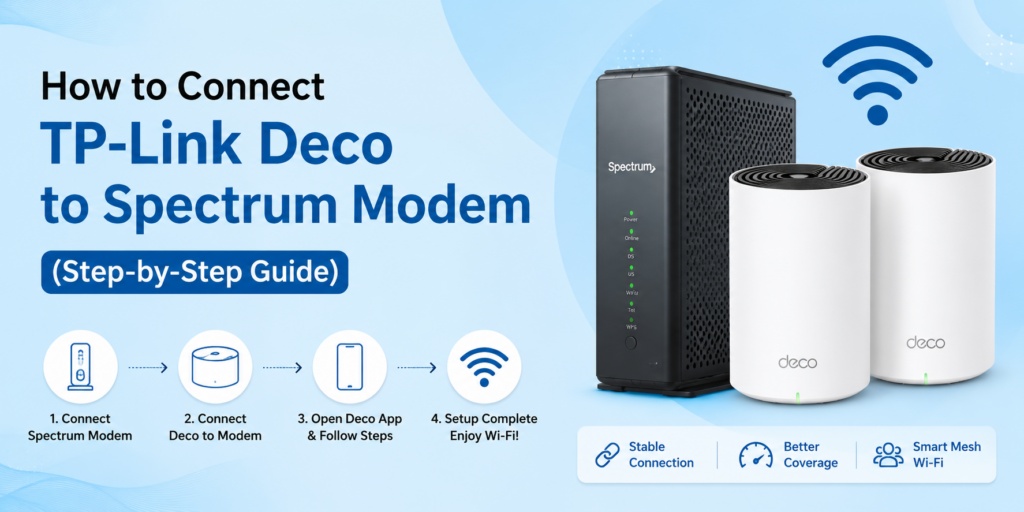
To connect TP-Link Deco to Spectrum modem, plug your main Deco into the Spectrum modem using an Ethernet cable, restart the modem and complete the setup through the Deco app. If you have a Spectrum modem-router combo, enable Bridge Mode or use Deco in Access Point Mode.
If your Spectrum Wi-Fi feels slow in some rooms, keeps disconnecting or struggles when multiple devices are connected, a TP-Link Deco mesh WiFi system can solve the problem. Many Spectrum customers replace their Wi-Fi with Deco because it provides stronger coverage, fewer dead zones and seamless roaming. The setup is usually simple. However, many users become confused when they see terms like Bridge Mode, Router Mode, Access Point Mode or Double NAT. The good news is that you do not need to be a networking expert.
This guide explains everything in simple way. Every step is easy to follow. By the end, your Deco system will be working smoothly with Spectrum Internet.
During setup, some users notice that the Deco stays red for several minutes after connecting to a Spectrum modem. In many cases, restarting the modem allows it to assign a new WAN IP address and complete the connection.
Let’s start.
Does TP-Link Deco work with Spectrum?
Yes. The TP-Link Deco system works with almost every Spectrum internet connection.
Whether you have:
- A Spectrum modem only
- A Spectrum modem-router combo (gateway)
- A newer Spectrum self-installation kit
You can complete the TP-Link Deco Spectrum setup without buying extra hardware. The setup method depends on the equipment Spectrum provided.
|
Spectrum Equipment |
Recommended Setup |
|
Modem only |
Deco in Router Mode |
|
Modem + Wi-Fi Gateway |
Bridge Mode + Deco Router Mode |
|
Gateway without Bridge Mode |
What You’ll Need Before Starting
Before beginning the setup, keep these items ready.
|
Required Item |
Why You Need It |
|
Spectrum modem or gateway |
Internet connection |
|
TP-Link Deco unit |
Main router |
|
Ethernet cable |
Connects modem to Deco |
|
Power adapter |
Powers the Deco |
|
Smartphone |
For the Deco app |
|
Deco App installed |
Complete setup easily |
Also make sure:
- Your Spectrum internet is already active.
- The modem has a stable internet connection.
- Bluetooth is enabled on your phone.
- You know your Wi-Fi name if reconnecting devices later.
Tip: If you already have an older Ethernet cable at home and the setup keeps failing, try using the cable included with your Deco. A damaged or outdated cable can sometimes cause unstable connections during installation.
How to Connect Deco to a Spectrum Modem (Modem-Only Setup)
This is the easiest setup. If Spectrum gave you only a modem without built-in Wi-Fi, follow these steps.
Step 1. Turn off the modem
- Unplug the modem power cable.
- Wait for about two minutes.
- This clears the old internet session.
Step 2. Connect the Deco
- Take an Ethernet cable.
- Connect one end to the modem.
- Connect the other end to the WAN/LAN port on the main Deco.
Step 3. Turn the modem back on
- Wait until all modem lights become steady.
- Usually this takes 3–5 minutes.
- Do not connect the Deco before the modem finishes starting.
Helpful Tip Some Spectrum modems temporarily remember the MAC address of the connected router. Restarting the modem clears that session so it can recognize the Deco.
Step 4. Power on the Deco
- Plug in the Deco and wait until the LED starts blinking blue. Once you see the blue light, open the Deco app and continue with the setup.
Step 5. Open the Deco App
- Launch the Deco App.
- Create or sign into your TP-Link account.
- Select your Deco model.
- The app guides you through every step.
Step 6. Finish the setup
Create:
- Network SSID (Wi-Fi name)
- Wi-Fi password
- Wait for the app to test the connection.
If successful, your connect TP-Link Deco to Spectrum modem process is complete.
Don’t worry if the internet doesn’t start immediately. Some Spectrum modems take around five minutes to assign a new WAN IP address after a reboot. Give the modem a little extra time before trying to reset the Deco.
How to Connect Deco to a Spectrum Modem-Router Combo (Bridge Mode Setup)
Many Spectrum customers receive a modem with built-in Wi-Fi.
This device works as both:
- Modem
- Router
If you also let Deco work as a router, two routers exist on the same network.
This creates problems.
Why Bridge Mode Matters (Avoiding Double NAT)
When two routers manage your internet at the same time, a condition called Double NAT happens.
This can cause:
- Slow gaming
- Port forwarding problems
- Video call issues
- Smart home connection failures
- VPN problems
Bridge Mode disables the routing features inside the Spectrum gateway. After enabling it, Deco becomes your only router. This gives better performance and simpler network management.
In most Deco installations, the biggest delay isn’t Bridge Mode. It’s restarting the Deco before the Spectrum modem has finished rebooting. Waiting another two or three minutes often solves the problem.
Step 1: Enable Bridge Mode on the Spectrum Gateway
Open the Spectrum gateway settings.
Look for:
- Bridge Mode
- Router Settings
- LAN Settings
Enable Bridge Mode, save the changes and restart the Spectrum gateway before connecting the Deco.
Some Spectrum models need customer support to enable Bridge Mode. If you cannot find the option, don’t worry. The next section explains another method.
Step 2: Connect Deco and Run Setup in Router Mode
After Bridge Mode is active:
- Connect modem LAN port to Deco WAN port.
- Restart the modem.
- Turn on Deco.
- Open the Deco app.
- Select Router Mode.
- Complete setup.
The Deco now receives the public WAN IP Address directly from Spectrum. This is the ideal setup.
Alternative: Skip Bridge Mode with Access Point Mode
Some Spectrum gateways cannot enable Bridge Mode. In that case, use Deco in Access Point Mode.
- The Spectrum gateway continues routing traffic.
- The Deco simply extends Wi-Fi coverage.
- This avoids most Double NAT problems without changing gateway settings.
Although Router Mode offers more features, Access Point Mode still provides excellent mesh coverage.
Router Mode vs Bridge Mode vs Access Point Mode
|
Mode |
Best For |
Recommended |
|
Router Mode |
Modem only |
Best |
|
Bridge Mode + Router Mode |
Gateway users |
Best |
|
Access Point Mode |
Bridge unavailable |
Good |
Setting Up Multiple Deco Units for Full Mesh Coverage
One Deco unit rarely covers a large home. Adding more units creates one seamless mesh WiFi system. Here’s the easiest way.
Place the second Deco
Keep it halfway between:
- Main Deco
- Weak Wi-Fi area
Avoid placing it:
- Inside cabinets
- Near microwaves
- Behind televisions
- Beside thick concrete walls
The Deco app automatically detects the new unit.
- Follow the prompts.
- Repeat for additional Deco units.
Real Example
One customer placed three Deco units. One downstairs. One upstairs. One near the home office. Before installation, video calls froze daily. After the TP-Link Deco mesh setup with Spectrum, every room received stable Wi-Fi.
Turning Off Spectrum’s Wi-Fi (Avoiding Signal Interference)
If your Spectrum gateway still broadcasts Wi-Fi, your home now has two wireless networks.
This can confuse devices. You may notice:
- Phones switching networks
- Slower roaming
- Random disconnects
Open the Spectrum gateway settings.
Disable:
- 2.4 GHz Wi-Fi
- 5 GHz Wi-Fi
Leave only the Deco network active. Your devices will now connect to one strong mesh network.
Deco Shows a Red Light or “No Internet” During Spectrum Setup — Fixes
Sometimes the setup does not finish immediately. A red LED usually means Deco cannot access the internet. One quick thing to check is the WAN IP address in the Deco app. If it shows 0.0.0.0, the Deco has not received an IP address from the Spectrum modem. In most cases, restarting the modem again fixes this problem. Try these explanations one by one.
|
Problem |
Solution |
|
Modem not restarted |
Restart modem after connecting Deco |
|
Loose Ethernet cable |
Reconnect both cable ends |
|
Wrong modem port |
Use WAN/LAN port on Deco |
|
ISP session locked |
Restart modem for 5 minutes |
|
Gateway still routing |
Enable Bridge Mode or Access Point Mode |
|
Old firmware |
|
|
Incorrect setup |
Reset Deco and try again |
If the TP-Link Deco not connecting to Spectrum issue continues:
- Restart every device.
- Factory reset the Deco.
- Test internet directly from the modem.
Contact Spectrum if the modem itself has no connection. Most connection issues are solved with a proper modem reboot.
FAQs
Does TP-Link Deco work with Spectrum internet?
Yes. TP-Link Deco works with Spectrum internet services, including modem-only connections and Spectrum gateways. The setup process is simple through the Deco app. Most users finish installation within 15 to 20 minutes without needing additional networking equipment.
Do I need to put my Spectrum modem in Bridge Mode for Deco?
Only if your Spectrum device includes built-in Wi-Fi and routing features. Bridge Mode prevents Double NAT and allows Deco to handle all routing. If Bridge Mode is unavailable, use Access Point Mode instead for stable performance.
Why does my Deco show a red light after connecting to Spectrum?
A red light usually means Deco cannot reach the internet. Restart the Spectrum modem, check Ethernet connections, confirm Bridge Mode settings if applicable and complete the setup again through the Deco app before contacting support.
Can I use Deco without contacting Spectrum support?
Yes. Most users complete installation themselves using the Deco app. Only a few Spectrum gateway models require customer support to enable Bridge Mode. Everything else can usually be done at home.
Should I use Router Mode or Access Point Mode with a Spectrum gateway?
Router Mode is the best choice when Bridge Mode is enabled on the Spectrum gateway. If Bridge Mode cannot be enabled, Access Point Mode is the better option because it prevents networking conflicts while keeping mesh Wi-Fi active.
How many Deco units do I need for my home?
If you are wondering ‘how many deco units do I need’ then here is the answer, small apartments usually need one or two Deco units. Medium-sized homes often need three units. Large multi-story homes may require four or more units for complete coverage and seamless roaming between rooms.
Final Thoughts
Setting up a Deco system with Spectrum is much easier than many people expect. The key is knowing which type of Spectrum equipment you have. If you have only a modem, simply connect the Deco and complete the setup in Router Mode.
If you have a Spectrum gateway, either enable Bridge Mode or use Access Point Mode. One of the most common setup errors is skipping the modem restart. Waiting for the modem to finish rebooting before powering on the Deco often resolves connection problems without changing any settings.
Recent Posts
Disclaimer
This website is not associated with, supported by, or sponsored by TP-Link Technologies Co., Ltd.; rather, it is an independent informational resource. All product names, brand names, and trademarks belong to their respective owners and are only used for identification and informational purposes.