How to Change Your TP-Link Deco Account Email?
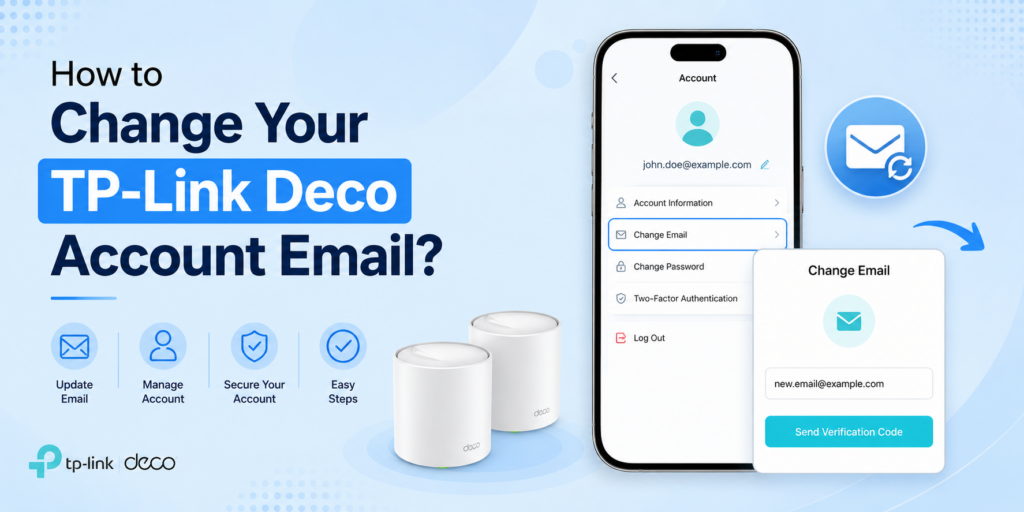
You cannot directly edit your TP-Link Deco account email. To use a different email, you usually need to create a new TP-Link ID and either unbind the Deco (if supported) or factory reset and register it again under the new account.
Many TP-Link Deco users assume changing the account email is as simple as changing an email on Facebook or Gmail. Unfortunately, it does not work that way.
If you’re searching for tp-link deco change email, you have probably noticed there is no Edit Email button inside the Deco app.
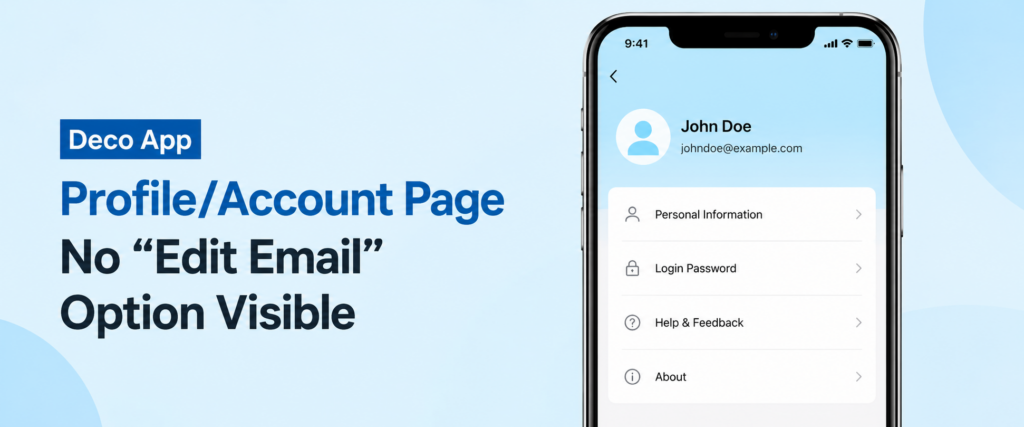
This surprises many users. I experienced the same thing while helping a family member move their Deco system to a new email account. We spent almost twenty minutes looking through every menu in the app before realizing the option simply wasn’t there. The good news is that changing your account is still possible. You simply need to use the correct method.
If you want a TP-Link ID email change, you cannot simply edit your existing email address. Instead, you must either:
|
Situation |
Best Solution |
|
You still have access to your account |
Create a new TP-Link ID and unbind the Deco (if supported) |
|
Unbind option unavailable |
Factory reset and register the Deco using the new account |
|
Selling your Deco |
Remove your account and let the new owner register it |
|
Lost your old email permanently |
Reset the Deco and register with a new TP-Link ID |
Note: Also check our guide on Tp-link deco app not working to resolve app related issues.
Why TP-Link Doesn’t Let You Edit the Email Directly
Many users ask, “Why can’t I just change my email like every other account?”
Unlike many online services, a TP-Link ID is tied to the ownership of your Deco system rather than just your login credentials. The account controls remote management, cloud services, HomeShield features and device ownership. Allowing anyone with account access to simply replace the registered email could create security and ownership issues, especially if an account were compromised. Instead, TP-Link requires users to transfer ownership by unbinding the device (on supported models) or resetting and registering it under a new TP-Link ID.
How TP-Link ID Binds to Hardware (Security/Authentication Design)
Every Deco system is connected to a TP-Link ID. That account is not just for logging in.
It is also used for:
- Remote management
- Device ownership
- HomeShield services
- Cloud access
- Family management
- Security authentication
Think of your TP-Link ID like the ownership certificate of your Deco system. Changing that email directly could create ownership disputes or unauthorized transfers. That is why TP-Link connects the hardware with the account instead of allowing simple email editing.
Note: If you need any assistance with login then check our guide on Tp-link deco login.
Why This Trips People Up Compared to Typical Account Settings
Most online accounts have a simple Change Email button.
Deco works differently. People usually expect this path:
- Settings → Profile → Email → Edit
Instead, they discover:
- There is no option.
- This causes confusion.
- Many users even think their app is broken.
Actually, this is normal behavior.
Common Reasons You Might Need to Change It
Everyone has different reasons. Here are the most common ones.
Lost Access to Your Old Email
This is probably the biggest reason. Maybe:
- Your email was deleted.
- Your company email expired.
- Your college email stopped working.
- Your recovery email is unavailable.
Without email access, account recovery becomes difficult.
Consolidating Multiple TP-Link IDs
Some people accidentally create multiple TP-Link IDs.
Example:
- one account for home
- another for office
- another created during setup
Later they want everything under one account. Unfortunately, TP-Link does not merge accounts.
Selling or Gifting Your Deco System
If you’re giving your Deco to someone else, you should never leave it connected to your account.
Instead, you should:
- remove your ownership
- erase personal settings
- let the new owner register it
This is the safest way to complete a transfer TP-Link Deco ownership.
Forgotten Password with No Account Recovery Option
Sometimes users remember the email but cannot reset the password. If recovery methods fail, creating a new TP-Link ID becomes the practical solution.
Before You Start: Back Up Your Deco Settings
Before making any changes, spend five minutes preparing. It saves a lot of time later.
Network Name (SSID) and Password
Write down:
|
Information |
Example |
|
Wi-Fi Name |
MyHomeWiFi |
|
Wi-Fi Password |
…. |
|
Guest Network |
Enabled/Disabled |
Keeping the same Wi-Fi name helps all your devices reconnect automatically after setup.
Deco Unit Layout, Models and Positions
Take a few photos. For example:
|
Deco |
Location |
|
Main Deco |
Living Room |
|
Satellite 1 |
Bedroom |
|
Satellite 2 |
Upstairs Hall |
These photos make reinstalling much easier.
Parental Controls, QoS and HomeShield Settings
These settings are usually lost after a factory reset.
Write down:
- blocked websites
- family profiles
- schedules
- QoS priorities
- device names
I once skipped this step. Recreating parental controls for twelve devices took almost an hour. A few screenshots beforehand would have saved a lot of work.
Method 1 — Create a New TP-Link ID and Re-register Your Deco (Full Reset)
This is the most reliable method.
It works on nearly every Deco model.
Step 1 — Register a New TP-Link ID with Your New Email
Download or open the Deco app.
Choose:
- Create Account
Enter:
- new email
- password
- verification code
- Verify the email.
- Your new account is now ready.
This completes the first step toward a change tp-link id email process.
Step 2 — Factory Reset Your Deco Unit(s)
- Locate the Reset button.
- Press and hold it for about 10–15 seconds.
- Wait until the LED changes.
- Repeat this for every Deco unit.
This will reset TP-Link Deco system completely.
Step 3 — Set Up Deco Fresh Under the New Account
- Open the Deco app.
- Log in using the new TP-Link ID.
Choose:
- Add New Deco
- Follow the setup instructions.
- Pair every satellite again.
Step 4 — Restore Your Original Network Settings
During setup, enter the same:
- Wi-Fi name
- Wi-Fi password
- Most phones, TVs and laptops reconnect automatically.
That saves a lot of time.
Method 2 — Unbind Instead of Reset (Works on Some Firmware/Devices)
- Some newer Deco models include an easier option. This method does not always appear. It depends on firmware and model.
How to Check if Your Deco App Shows an “Unbind” Option
Open:
- Tools
Select:
- TP-Link ID
Look for:
- Unbind
- If you see it, you are lucky.
- If not, your device probably requires a full reset.
Step-by-Step:
- Tools → TP-Link ID → Unbind
Follow these steps:
- Open Deco App.
- Go to Tools.
- Tap TP-Link ID.
- Choose Unbind.
- Confirm removal.
- Log in using the new account.
- Register the Deco again.
This method lets you unbind TP-Link device from account without wiping everything on supported models.
Why This Doesn’t Always Work for Deco
Older firmware often lacks this feature. Some entry-level Deco models never received it. Others require firmware updates first.
|
Method |
Reset Needed |
Settings Lost |
Success Rate |
|
Unbind |
No |
Usually No |
Medium |
|
Factory Reset |
Yes |
Yes |
Very High |
For more detail about firmware check our guide on tp-link deco firmware update.
How to Change Ownership When Selling or Gifting Your Deco
Changing ownership is different from changing your email. The goal is to remove your connection completely.
What the New Owner Needs to Do
The new owner should:
- install the Deco app
- create a TP-Link ID
- register the Deco
- finish setup
What You Should Do Before Handing It Over (Data/Privacy Cleanup)
Before giving away the router:
- Remove saved settings.
- Remove family members.
- Delete guest network.
- Remove parental controls.
- Reset the device.
- Remove your account if possible.
This protects your privacy. It also avoids activation problems for the next owner.
How to Troubleshoot Not Receiving the Verification Email issue
Sometimes things don’t go smoothly. Here are the most common fixes. if your are “Not Receiving the Verification Email” (Spam Folder, Typo Check, Resend)
Check these first:
- Spam folder
- Junk folder
- Promotions tab
- Email spelling
- Internet connection
Then tap:
Resend Verification Email
Many users searching tp-link deco email not working simply discover the email landed in Spam. “Change Email” Option Missing or Greyed Out in the App. This is expected. There is currently no built-in email editing feature.
Use:
- Unbind
- Factory reset
- depending on your model.
- Forgot Your TP-Link ID Password
- Use the password recovery option.
If recovery fails because you cannot access the old email, create a new account and re-register the Deco is usually the practical solution.
Old Firmware Blocking the Unbind Option — How to Update First
If Unbind is unavailable:
- Update Deco firmware.
- Restart the app.
- Check again.
Some firmware versions add account management improvements.
TP-Link Deco Email Change: Reset vs. Unbind Comparison
|
Feature |
Reset |
Unbind |
|
Time Required |
20–40 minutes |
5–10 minutes |
|
Data Loss |
Yes |
Usually No |
|
Supported on Older Models |
Yes |
Sometimes |
|
Requires New Setup |
Yes |
Usually No |
|
HomeShield Settings |
Reconfigure |
Often Retained |
|
Best Choice |
All Models |
Supported Models Only |
Best Practices Before Changing Your TP-Link ID
|
Do |
Don’t |
|
Save Wi-Fi details |
Reset without backups |
|
Take screenshots of settings |
Assume all models support Unbind |
|
Update firmware first |
Ignore verification emails |
|
Keep the same SSID if possible |
Forget to remove personal data before selling |
FAQs
Can I change my TP-Link ID email without resetting Deco?
Not usually. TP-Link does not provide a direct email editing option. If your Deco model supports the Unbind feature, you may move the device to another TP-Link ID without performing a complete factory reset. Otherwise, resetting and registering again is required.
Does changing my email affect my HomeShield subscription?
HomeShield is linked to your TP-Link account. If you move to another TP-Link ID, you may need to verify how your subscription is associated with that account before completing the transfer. Check your subscription details first to avoid interruptions.
How do I change the email on the Deco app specifically?
There is no option inside the Deco app to directly edit your account email. Instead, create a new TP-Link ID and either use the Unbind option if available or reset your Deco system and register it again.
Can two TP-Link IDs be merged into one?
No. TP-Link currently does not provide an account merge feature. If you have multiple TP-Link IDs, you will need to decide which account to keep and then manually move supported devices by unbinding or resetting and registering them again.
Final Thoughts
Changing your TP-Link Deco account email is not as straightforward as changing the email on a typical online account. That is because your TP-Link ID acts as the ownership record for your Deco system and helps protect remote access and cloud services.
For most users, the process is simple once you know the available options. If your Deco model supports the Unbind feature, it is usually the fastest way to move your device to a new account. If it does not, creating a new TP-Link ID and performing a factory reset is the most reliable solution.
Before making any changes, always back up your Wi-Fi name, password and significant settings. Spending a few minutes preparing can save a lot of time during setup.
Recent Posts
Disclaimer
This website is not associated with, supported by, or sponsored by TP-Link Technologies Co., Ltd.; rather, it is an independent informational resource. All product names, brand names, and trademarks belong to their respective owners and are only used for identification and informational purposes.